
Gitlab is the new beast in town when it comes to GIT Repositories.
Why is Gitlab so awesome ?
- Its faster than bitbucket when it comes to pull and commits. ( As the project size increased we found BitBucket to crawl ) . Github is good but costs you for private repos !!
- Free unlimited Private Repo’s for up to 5 users to collaborate with
- Continuous build integration ( yet to figure it out for Unity 🙂 )
How to configure Gitlabs with Sourcetree ?
STEP 1 : First generate the SSH key ( cant use the https way with Sourcetree due to lack of options to connect to Gitlab ).
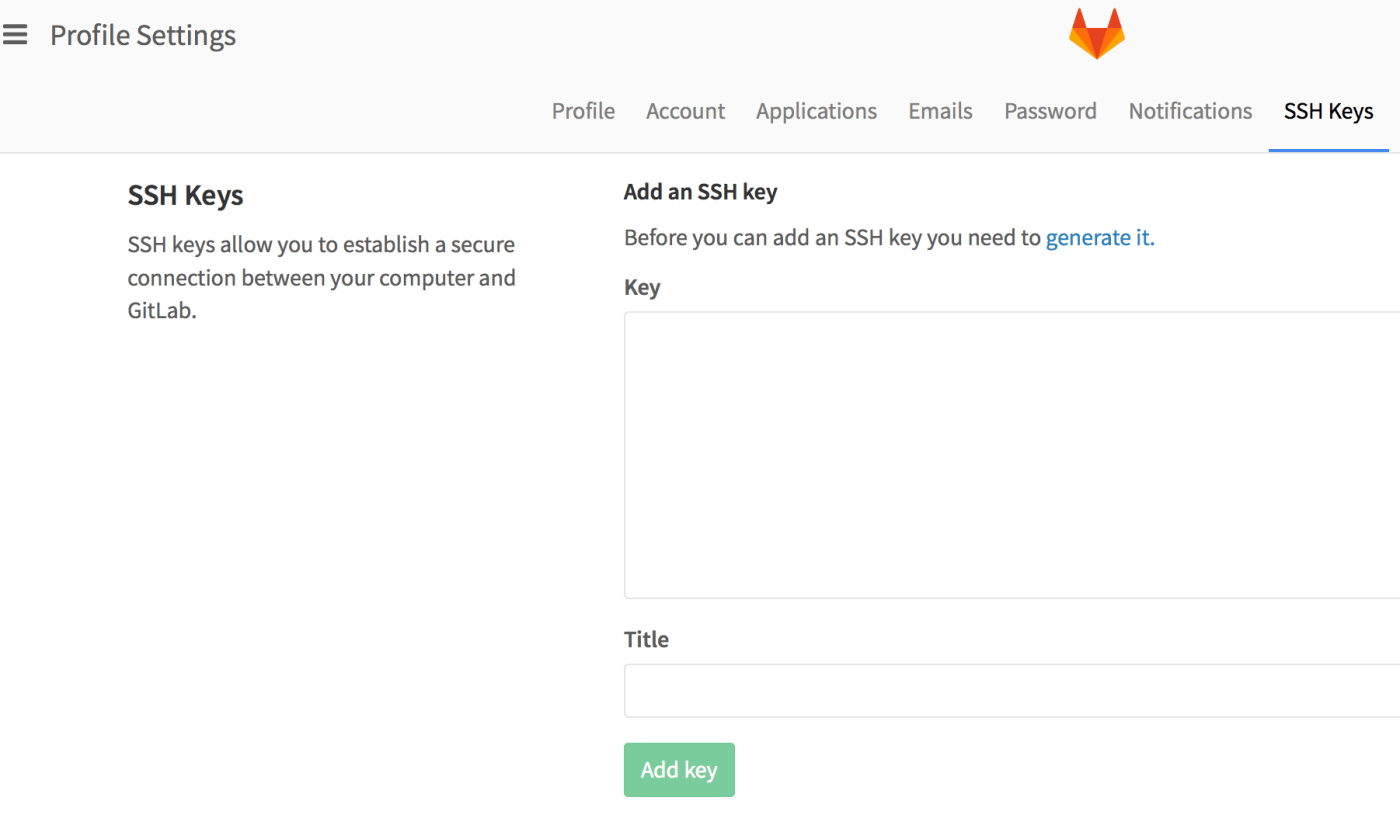
- Log onto GitLab
- In the left pane, click Profile Settings.
- Click SSH Keys.
You should now see something like this :
STEP 2: Creating your SSH key on local machine
$ ssh-keygen -t rsa -b 4096 -C “your_email@example.com”
# Creates a new ssh key, using the provided email as a label
Generating public/private rsa key pair.
When you’re prompted to “Enter a file in which to save the key,” press Enter. This accepts the default file location.
Enter a file in which to save the key (/Users/you/.ssh/id_rsa): [Press enter]
At the prompt, type a secure passphrase.
STEP 3: Copy the SSH key into the key text-area in STEP 1.
- Open the file ( /Users/you/.ssh/id_rsa ) created in STEP 2 and copy the content starting from ssh-rsa all the way to your email id.
- Add a title , Save and you are done !
STEP 4: Configure your Sourcetree to use SSH and connect to your gitlab repo
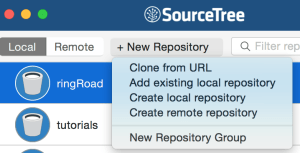
1.Clone from URL
2. Enter your repo details
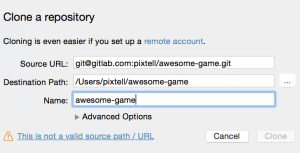
If you enter the right details you will be able to hit the clone button 😉 .
You should be all set now to use Sourcetree with GitLab. Happy #gamedev !!
 Avinash.tech(...)